
Using DataFast filters to analyze your data
Filters help you narrow down your analytics data to focus on specific segments of your audience. This makes it easier to understand patterns and discover visitors that are more likely to convert.
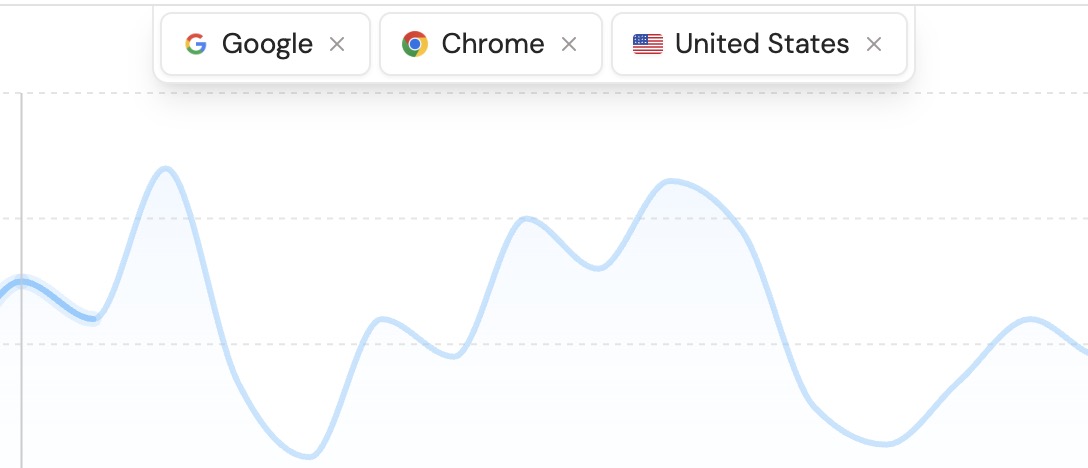
How to add filters
Hover over any data point in your dashboard to see the filter icon. Click it to add a filter.
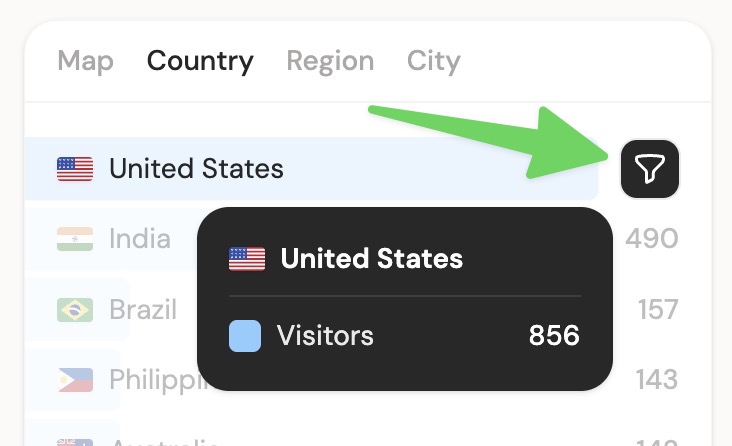
DataFast will return only the visitors that matches the filter, and show revenue generated by those visitors.
You can add multiple filters to your dashboard to focus on specific audiences, traffic sources, and user behaviors.
Realtime analytics filter
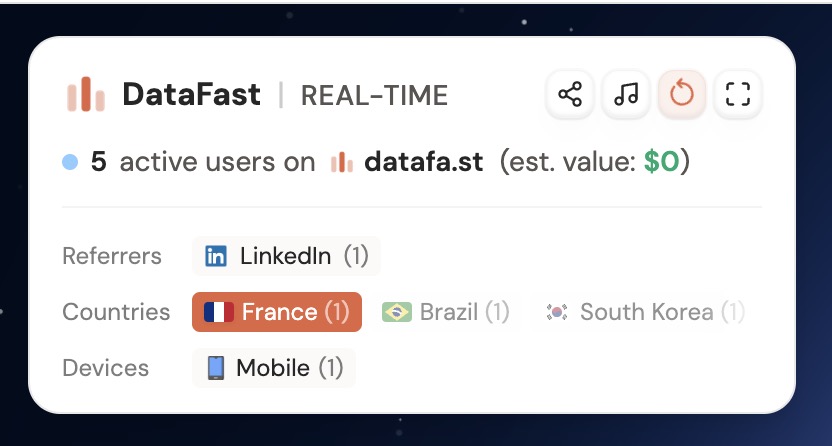
Just click a country, referrer, or device in the control panel (top left of the globe) to add filters to the data in real-time.
Filtering your data by custom goals
signup, checkout_initiated, newsletter_subscribe, etc.This helps you see which users are more likely to convert, and which goals are most effective.
Filtering by number of visits
Use the Visit count filter to segment visitors by their all-time tracked session number.
- Visit count is 1: first-time visitors
- Visit count is 2 or more: returning visitors
- Visit count is 3 or more: visitors who came back multiple times
This is useful when you want to compare traffic sources, pages, countries, devices, goals, journeys, or funnels for people who came back after their first visit.
filter_visit_count. For example, filter_visit_count=gte:2 filters analytics to returning visitors.Segments — save filter combinations
If you keep applying the same filters, save them as a segment so you can reapply them in one click.
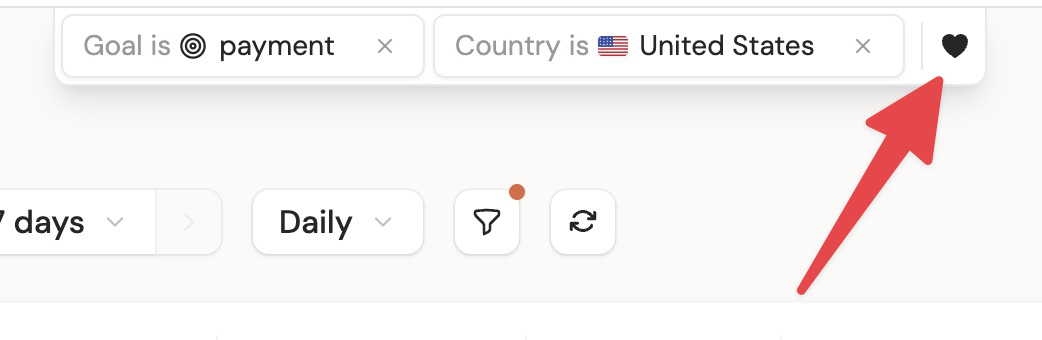
How to create a segment
- Apply the filters you want (e.g., Goal is payment + Country is United States)
- Click Save as segment
- Name your segment (e.g., "Customers from USA")
How to use a segment
Open the filter menu — your saved segments appear at the top. Click one to instantly apply all its filters.
Segments are per-website. Each website has its own saved segments.